
Cancel or change class dates
A guest instructor for one week, a different time for a single session, or a date you need to call off. Change or cancel individual dates without disturbing the weekly pattern.
- Step 1
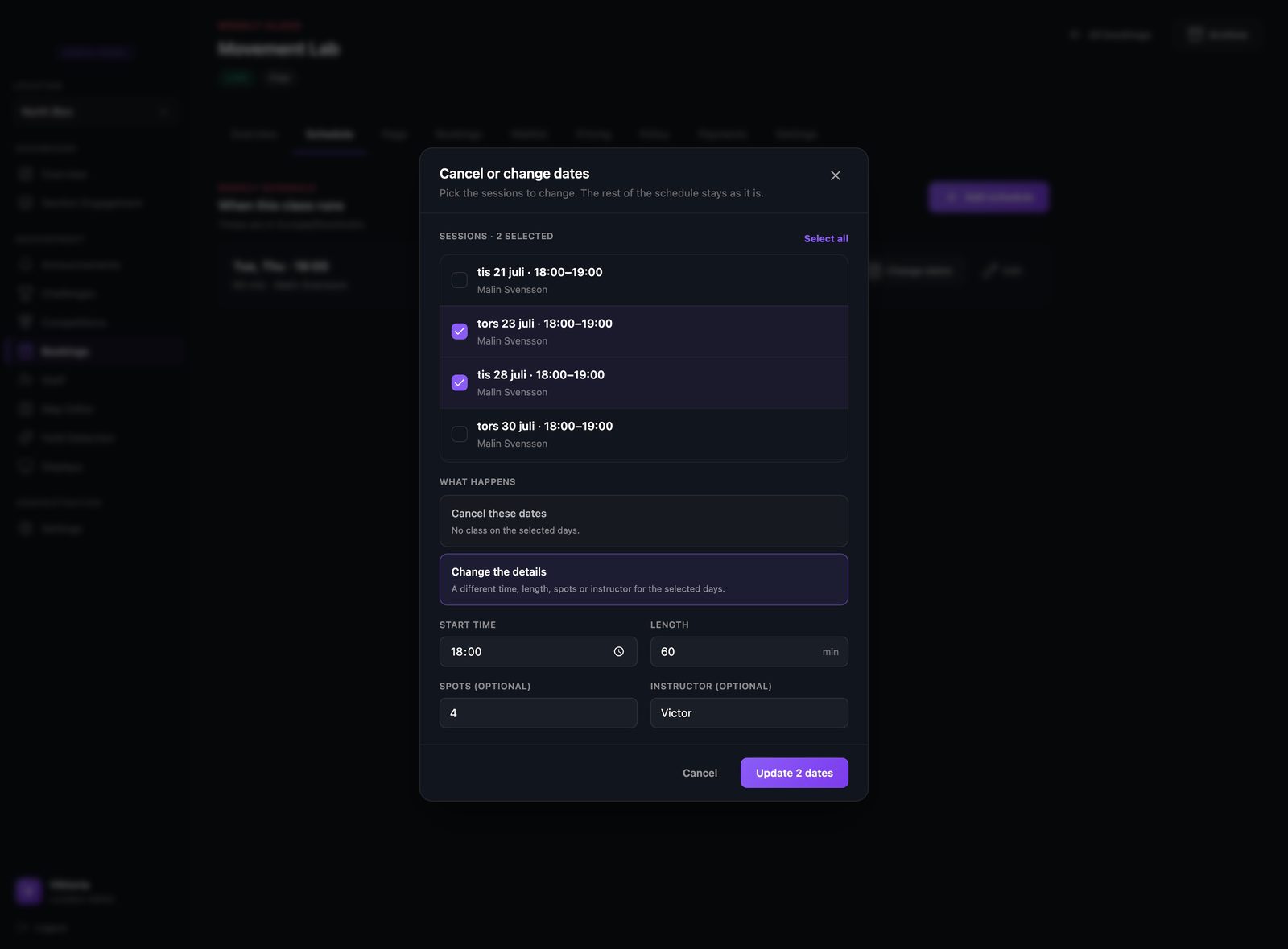
Pick the dates you want to change
From the class schedule, open Cancel or change dates. Every upcoming session has a checkbox, so tick one or several to work on them together. Choose Change the details and you can set a new time, length, number of spots, or instructor for just those dates.
- Step 2
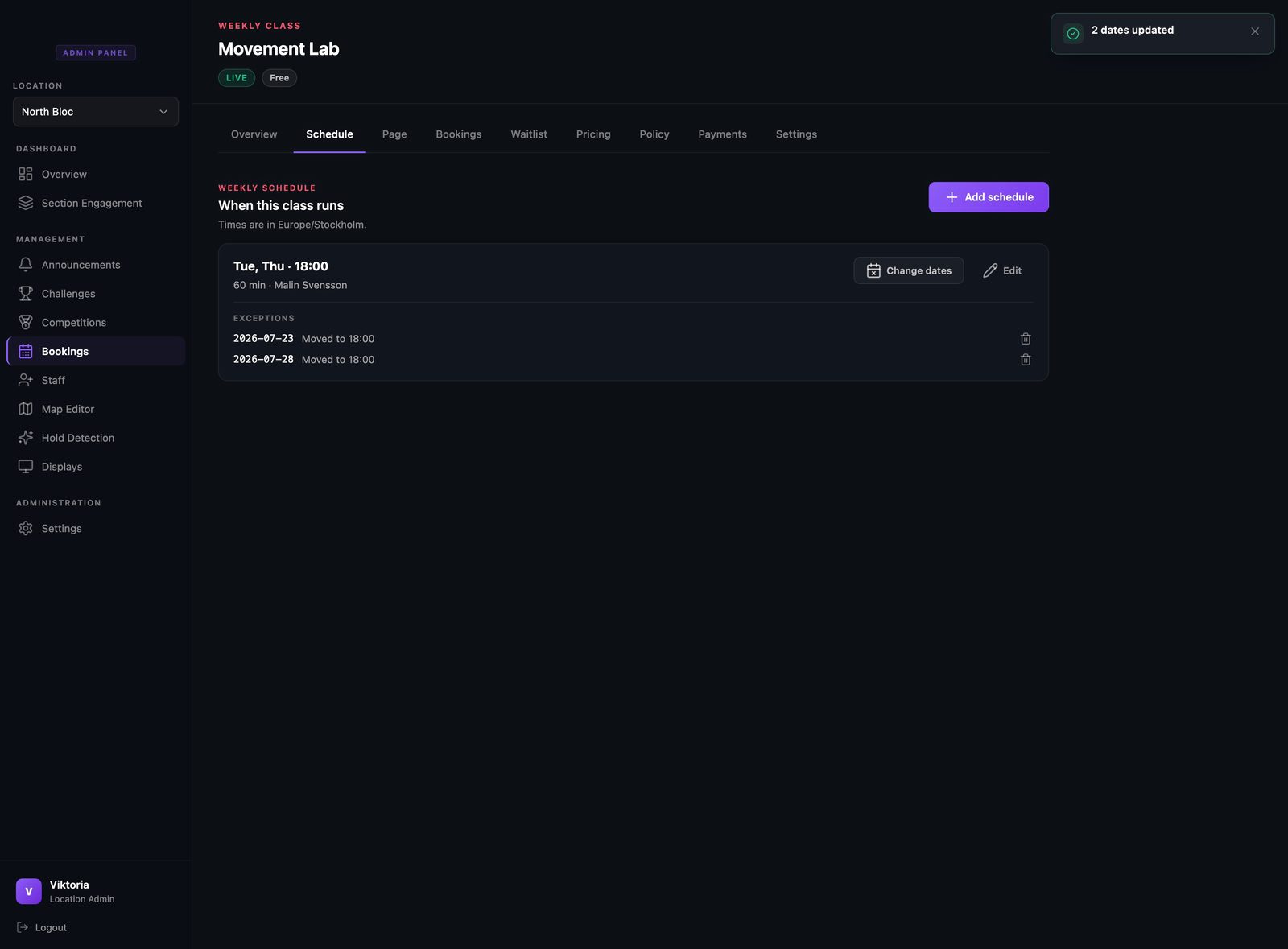
The change sits under your weekly rule
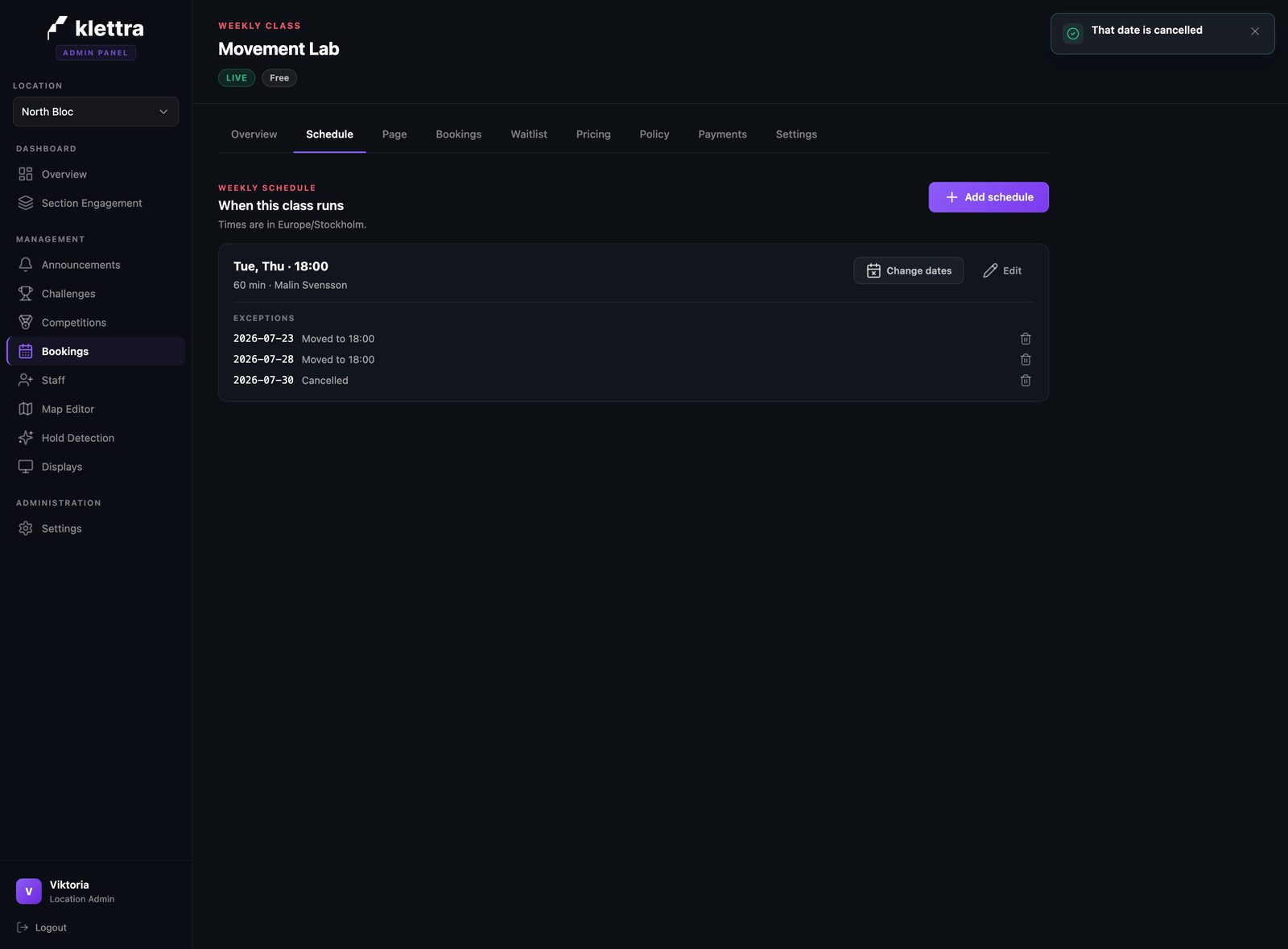
Your weekly pattern stays exactly as it was. The dates you changed are listed underneath it as exceptions, so it is always clear which sessions differ and why, and the rest of the run carries on untouched.
- Step 3
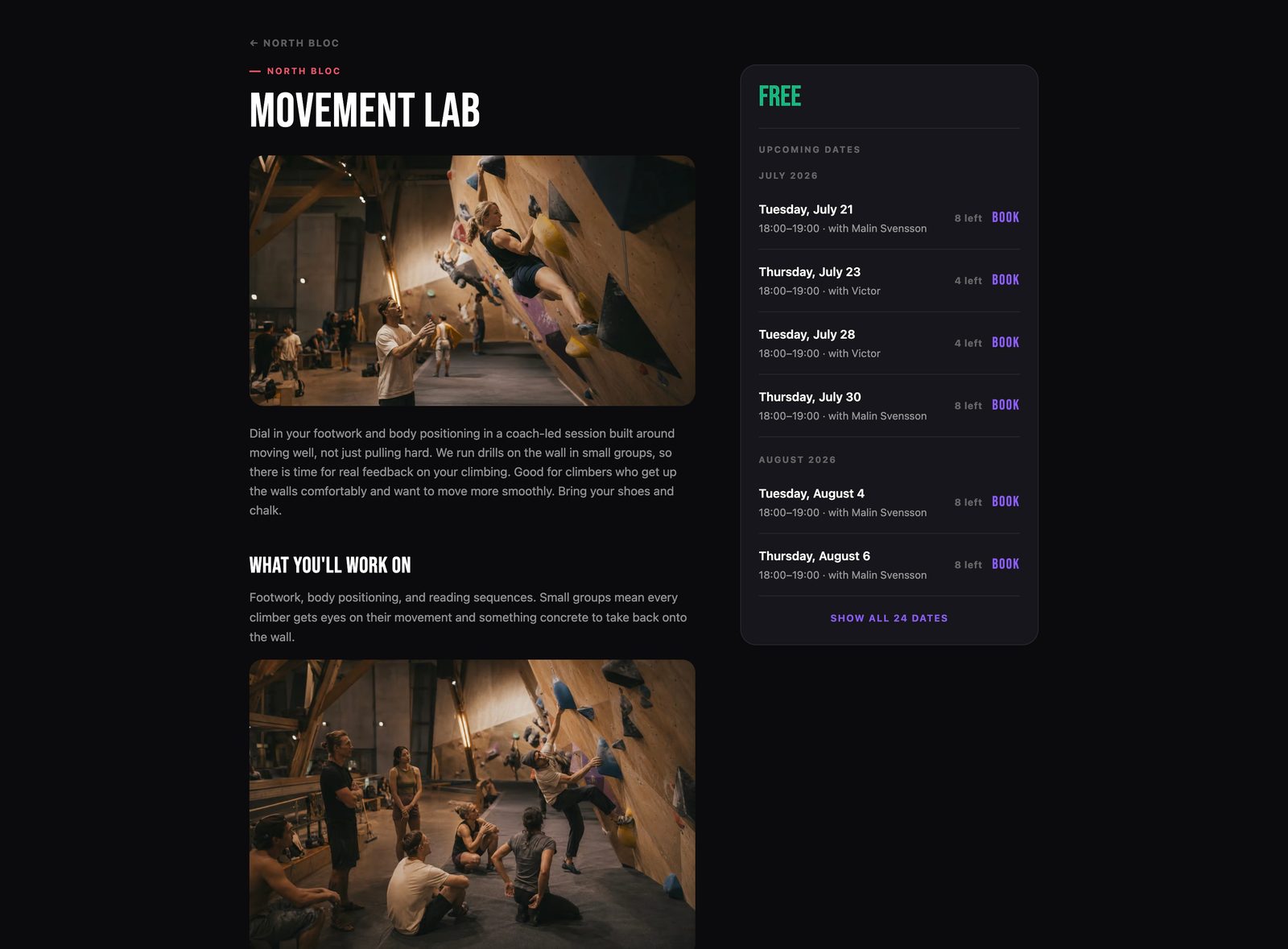
Climbers see the exact change
On the public page, only the dates you touched show the new details, such as a different instructor or fewer spots. Every other date keeps the usual times and instructor, so what climbers see is always accurate.
- Step 4
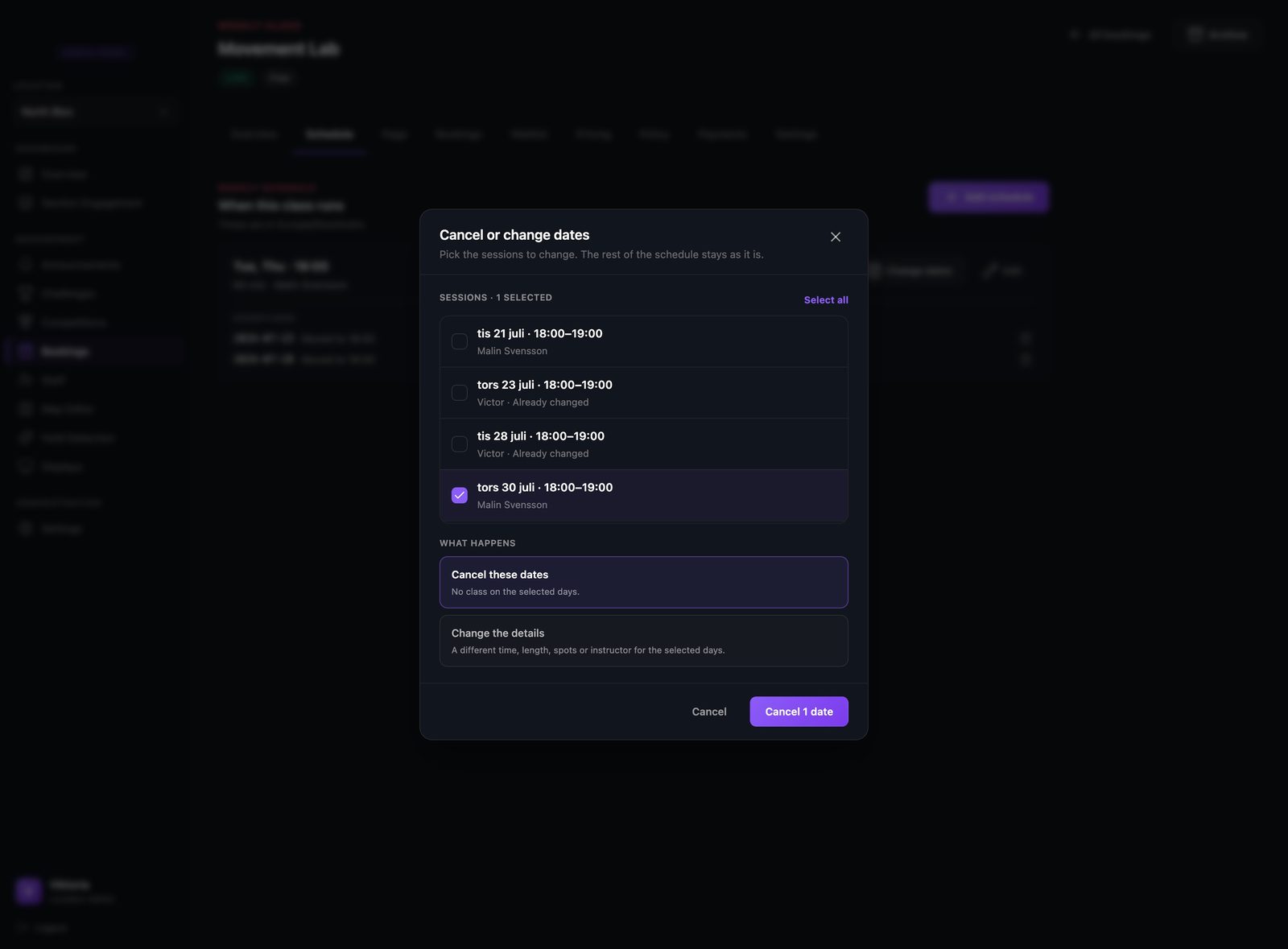
Call off a date
To cancel a session instead, open the same tool, tick the date, and choose Cancel these dates. Any date you have already changed is marked so you do not edit it twice by mistake.
- Step 5
A cancelled date stays gone
A cancelled date drops off the public page straight away and will not come back on its own. Your schedule card now shows the full picture: which dates were moved and which were cancelled, all under one weekly rule.
That is the whole flow
The same few steps set up every kind of booking. Browse the rest of the guides, or see how bookings work end to end.